
Elevating Marketing with Canva’s AI Video Studio
Canva’s video capabilities have become a breakout strength – especially for marketers. Whether you’re crafting a campaign, launching a product, or delivering internal comms, Canva Video lets teams tell stories at speed and scale, on-brand.
Key Video Use Cases in Canva
Canva Video is already powering a wide range of marketing and communications projects. For example:
- Campaign Content & Social Ads: Marketers can whip up branded video and social ads in minutes. With drag‑and‑drop templates and AI animations, teams create everything from TikTok promos to LinkedIn carousel videos. Canva users are producing TikTok ads, marketing campaigns, training videos, and how‑tos – Canva is becoming a go‑to tool for campaign content.
- Product Explainers & Tutorials: Product teams use Canva to turn specs or blog posts into animated explainers. They can storyboard product demos with AI, then add voiceover, motion graphics and subtitles – the result: polished how‑to or demo videos that save time versus custom animation or hiring an editor.
- Internal Communications: HR and comms leaders create engaging updates (e.g. CEO messages, training clips, or company milestone videos) directly in Canva. Leadership can record a quick update and use Canva’s auto-captioning and branded templates to make it polished and on‑brand for employees. These videos replace static memos or slides, making internal announcements more personal and memorable.
- Employer Branding & Recruitment: Employer‑brand teams craft “day in the life” stories and office tour videos to attract talent. Using team templates, employees can even produce branded wrap‑up or culture videos (like event highlights or employee testimonials) to share online. Such content gives candidates an authentic peek into company culture.
- Customer Storytelling: Marketers can turn customer success stories into video case studies. Rather than relying on professional shoot crews, teams use Canva’s stock clips and animation to spotlight happy clients or testimonials. Any written testimonial or case‑study content can quickly become a visual narrative – boosting trust and brand loyalty.
Each of these use cases benefits from Canva’s collaborative, cloud-based editor, ensuring teams stay on the same page. Brand colours, fonts and logos are baked into templates so every video “always feels like ‘you’”, helping maintain consistency across campaigns.
Canva’s AI-Powered Video Tools
Canva Video is packed with AI features that make creating and editing video simple for non-experts. Key AI-driven capabilities include:
- Magic Video (Smart Editing): Upload raw clips and tell Canva what you want (e.g. “make a 15‑sec travel recap”). Canva AI then auto-assembles a polished video with brilliant cuts, synced audio, transitions and layouts. This eliminates tedious editing: a single click yields a social‑ready video. Marketers can repurpose footage (e.g. event clips or product shots) into ready-to-go promos almost instantly.
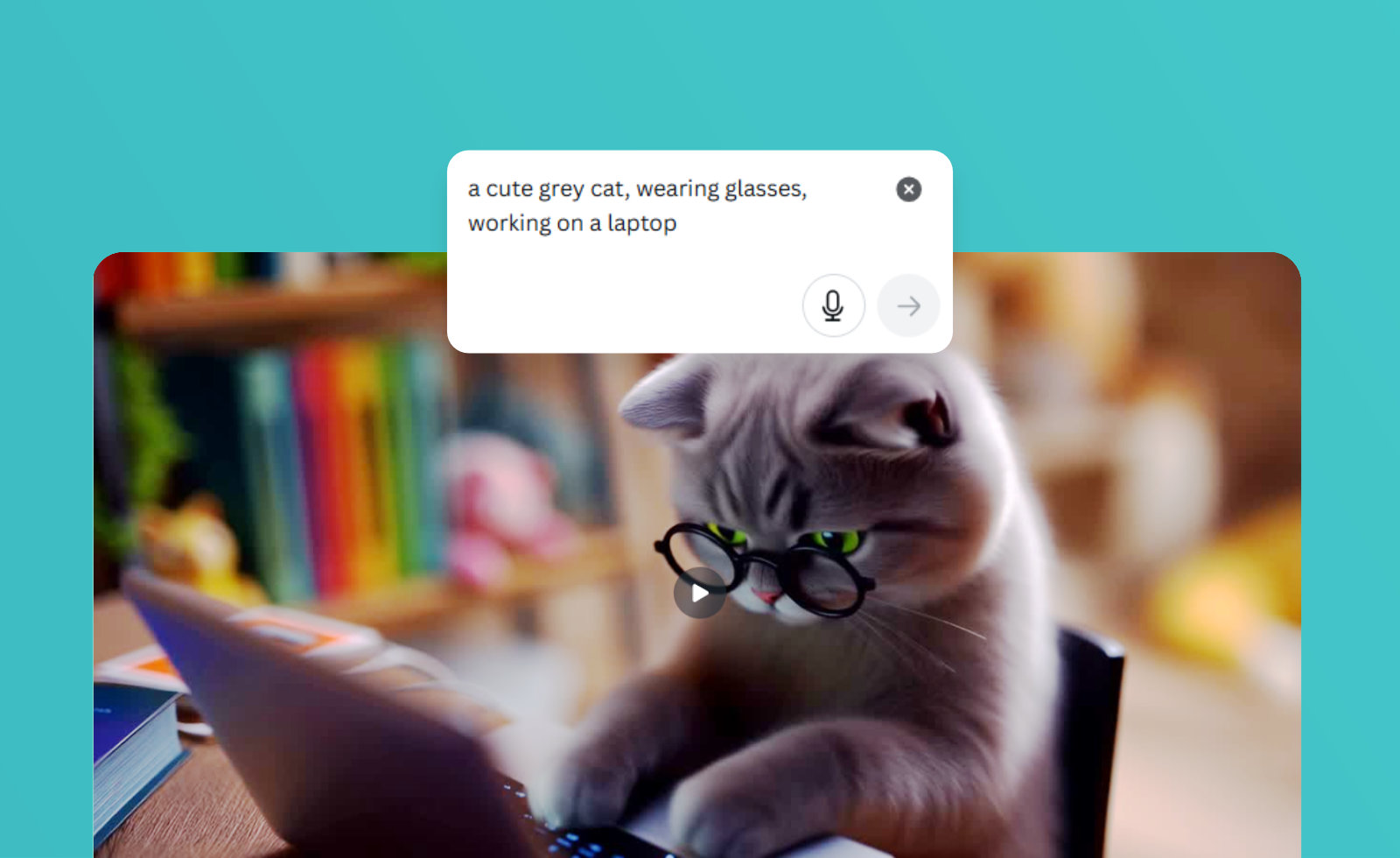
- AI Text-to-Video (Magic Media) & Script-to-Video: Canva’s Script to Video app (powered by HeyGen) transforms a written script into a talking-head video. For example, paste a blog post or announcement into the HeyGen app to instantly get a professionally narrated clip. Meanwhile, Magic Media lets you generate entire storyboard images or scenes from text prompts. Just describe a scene (“a customer unboxing our product with excitement”) and Canva’s AI will create matching visuals. Together, Magic Write (to draft scripts), Magic Media (to create scenes), and Magic Video form an end‑to‑end AI video workflow.
- Animation & Motion: Add movement to any graphic with one click. Canva’s Magic Animate automatically applies smooth transitions and animations across a clip, and individual elements can be animated (pans, fades, pops) within seconds. These easy animations give videos a polished, on-trend look without any manual keyframing.
- Branded Captions & Subtitles: Accessibility is built in. The Captions tool can auto-generate accurate subtitles for any clip. Users then style captions with their brand fonts and colours in a few clicks. This not only boosts engagement (most social viewers scroll muted) but also ensures every video stays on-brand. Canva even offers an AI translation tool to turn captions into 100+ languages, extending reach globally.
- Stock Media Integration: Canva’s library includes over 1.5 million professional assets. Its integration with Artlist gives access to cinematic stock videos and curated music tracks right in the editor. Combined with Canva’s built-in stock images and audio library, creators never have to leave the app for high-quality assets. Whether it’s drone footage for a promo or royalty-free tunes for a story, everything is just a search away.
- Audio Enhancement: Canva’s Enhance Voice removes background noise in one click, so even mobile phone recordings sound studio‑clean. There’s also a built-in Beat Sync feature that automatically aligns video cuts to music beats, helping any clip feel rhythmically polished. In short, Canva offers a mini sound studio: background noise filters, a music catalogue, beat‑matching, and even generated sound effects, all to make videos sound professional.
- Background Remover & Effects: One-click background removal lets you instantly isolate subjects or products. Need someone in front of your logo or a product shot on a clean backdrop? Just click to remove the background and replace it with a branded graphic or colored screen. This makes it easy to create consistent visual themes (e.g. all shots with a white background) even without a physical green screen.
Together, these AI video tools give every team member—from social media interns to agency producers—the power of a full video studio. And because everything lives in the cloud, teams can collaborate in real time on a project (even across different devices), a capability unique to Canva Video.
Example Workflows: From Script to Screen
Here are a few example workflows showing how marketers and comms teams can leverage Canva’s AI features:
- Script → Talking-Head Video: Step 1: Use Magic Write or Chat (Canva’s AI assistant) to draft a script. Step 2: Open the HeyGen Script to Video app in Canva, paste your script, choose an avatar and voice tone, and click Generate AI Video. Within moments, you’ll have a talking‑head video narrated in a professional tone. Step 3: Drop the generated clip into Canva’s editor to add branded title slides, B-roll clips, background music, and auto-captions. Step 4: Export or share directly. (This workflow lets you turn a text announcement into a narrated video update without hiring a videographer.)
- Script → Storyboard → Video: Step 1: Write a short outline or storyboard bullet points for your story. Step 2: Feed scene descriptions into Magic Media’s text-to-image AI (e.g. “Scene 1: A dynamic shot of a new product in use in an office”). Magic Media will generate illustrative panels for each scene. Step 3: Refine the storyboard by re-running prompts or editing the panels. Step 4: Once approved, use Canva Video’s timeline to animate those panels, add voiceover (AI or recorded), and tie the scenes together with transitions and captions. (This approach is excellent for planning product demos or training videos.)
- Document → Short Promo Video: Step 1: Take key points from a longer document or blog post and use Magic Write to generate a concise video script (e.g. “Create a 15-second script highlighting our new summer product line, focusing on eco-friendly features.”). Step 2: Use the Script-to-Video app to create a talking-head introduction if needed. Step 3: In the video editor, add stock clips or animations around the narration. Step 4: Auto-generate captions (brand-styled) and background music. In minutes, what was once a text-heavy write-up is now a short branded promo video ready for social media.
Each workflow demonstrates how Canva’s AI can handle the heavy lifting (writing, editing, even scene generation), letting marketing teams focus on strategy and creative direction.
AI Prompt Examples
Here are a few AI prompt examples you might try in Canva’s Magic Studio or Script-to-Video:
- “Write a lively 30-second Instagram video script introducing our new product, XtremeClean, to a young audience, with a friendly tone.” (Use in Magic Write.)
- “Create a short storyboard scene: a business professional in a modern office setting enthusiastically demonstrating a new software feature.” (Use in Magic Media.)
- “Generate a professional talking-head video of length 45 seconds: the CEO announcing our annual goals and milestones for staff communications.” (Use in HeyGen Script-to-Video.)
These prompts can seed a script or visual, which you then polish with the editor. The key is to be descriptive about the style, audience, and content—Canva’s AI will fill in the rest.
Canva as a Marketer’s Video Platform
Taken together, Canva’s video suite is positioning itself as a serious alternative to traditional video software for everyday marketing content. While high-end editors (Premiere, After Effects, etc.) still serve blockbuster productions, Canva lets every marketer create polished videos without steep learning curves or specialised hardware.
The results speak volumes: over 1 billion videos have already been created and shared on Canva, and millions of users rely on Canva to share their message. For marketing teams, this translates to brand consistency and agility – everyone uses the same templates and brand kit, and videos can be updated or iterated in minutes. Canva Video delivers studio-level production value for routine marketing needs. You get cloud-based collaboration, locked‑down brand templates, a massive asset library, and AI magic – all inside a familiar drag‑and‑drop interface.
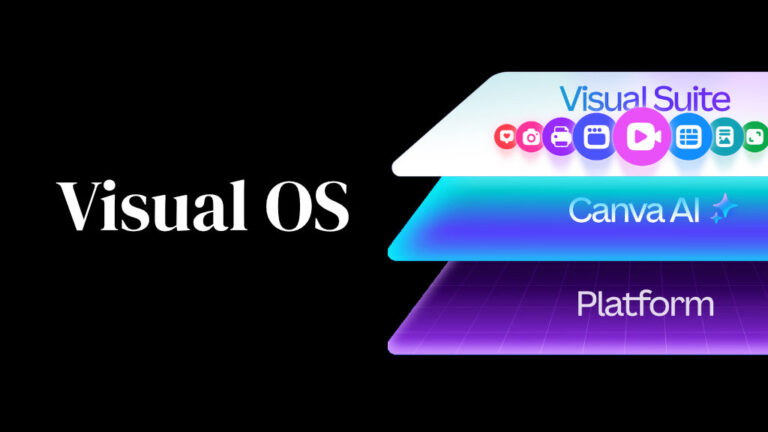
For more on Canva’s evolving role in enterprise workflows, check out our Xanadu blog posts. See “Xanadu + Nitro + Canva = ❤️” to learn how Canva integrates with enterprise document tools, or read “Canva’s API Ecosystem: The Emerging Visual OS” for a deep dive into Canva’s platform strategy. These stories show that Canva isn’t just for design – it’s building a complete visual operating system for teams.


2 Comments